
On this page
Getting Started
Delas is a minimal ghost blogging theme. It is built for bloggers, journalists, freelancers, editors, authors, writers, developers. Delas is fully responsive, light-weight, superfast ghost theme and built with html, css, js, scss and ready for premium subscription features
Support
If you have any questions that are beyond the scope of this help file, please feel free to send your questions to our support email: support@electronthemes.com Our support team will reply you within 6 hours.
Theme Setup
Delas theme setup is very easy. If you have already installed a server for Ghost you can easily setup Delas theme. If you don’t have server suported with Ghost, you can set up reading Ghost Install. When you have the server, follow the instructions for setting up the theme.
Upload the theme
You can upload the theme file from ghost dashboard. to do this
- Download theme file from Dashboard
- Log in into your Ghost admin panel.
- Go to
settings > design > Change Theme > upload theme and then upload your theme - Click Activate.

Uploading the theme via (FTP)
Follow the instructions
- Login to your FTP account.
- Unzip the delas.zip file and copy delas folder to your
/ghost_installation/content/themes - Restart your installation if necessary. You can ask for help from your hosting provider if you don’t know how to do this step.
- Login to your ghost admin panel.
- Go to settings (general) and select theme “Delas“
- Click Save.
Here I have used Cyberduck to upload file on server and I used subdomain. That is why I used Docslab Folder
General Setup
Publication Info
To change publication info, go to Dashboard > Settings > General > Publication Info. Here you can change the followings:
- Title
- Description
- Site Timezone
- Publication Language

Logo
You can change Logo from Dashboard > Settings Icon > Design > Brand > Publication Logo

Upload logo for light mode Settings > Design > Site Wide > Dark mode logo

Favicon Icon or Publication Icon
Ghost shows his ghost logo in your site by default. You can change Favicon Icon or Publication Icon from Dashboard > Settings Icon > Design > Brand > Publication Icon

Publication Cover
This is for showing site bookmark image. If you upload a cover image, it will in your site bookmark

Language
You can use the publication in your native language. To change the language of your publication site, your theme must have support for translation. To change langauge:
- Go to
Settings > General > Publication Languageand click on Expand - Change the default language en with your language code
- You can find all the language code here: HTML Language Code Reference

Site Meta Settings
This is for Meta data. It will help to get on search using search engine. You can add also Twitter and Facebook card image, content here.
You can add/edit the content from Dashboard > Settings > General > Site Meta Settings

Social Accounts
Social account section is for showing Facebook, Twitter links of your site. Go to Dashboard > Settings > General > Social Accounts

Navigation
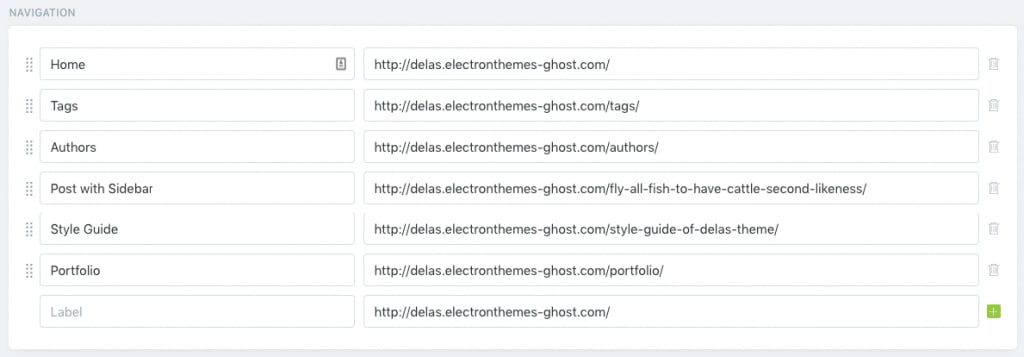
Ghost only support two types of Navigation. Primary and Secondary Navigation Menu. On header, primary navigation is showing and On Footer secondary navigation is showing. Go to Dashboard > Settings > Navigation
Create a Post
Ghost has a beautiful dashboard design. You can easily create a post. Go to Dashboard > Posts > New Post
- Post Title
- Post Contents
- Feature image
- Tags
- Authors
Create a page
As like as post, you can create a new page from Dashboard > Pages > New Page. You can add:
- Title
- Contents
- Tags
- Authors
- Feature Image
- Excerpt
- more…
Featured Post
Ghost has awesome featured posts option to show some of your chosen posts as featured for the visitors. To add a post as featured, go to Post > Settings and scroll down. Select the checkbox Feature this post

Create Tag
To create a new tag, go to Dashboard > Tags > New Tag
Create Author
You can create multiple author in your site from dashboard. Go to Dashboard > Settings > Stuff > Invite people
Click on Invite people and you will get a new popup. You have to add Email Address and select the staff Role. Lastly click on Send Invitation now button. An email notification will be sent to create an account on the specific Role.

Code Injection
Code injection is a great feature on Ghost. You can easily write styles and scripts for your site without editing the theme file. You can add various plugins code here like Google Analytics
Here you will two text fields for code injections. 1. Site Header and 2. Site Footer
- Site Header is for load the scripts or style in the header
- Site Footer will load the scripts or style in the footer
Go Dashboard > Settings > Code Injection

Integrations
Integrations are another cool feature of Ghost. You can connect a lot of third-party plugins or API using integrations. To check the integrations,
- Login to Admin panel
- Go to
Dashboard > Settings > Integrations. - Click on
+ Add custom integration buttonand add a name for creating integration - You can use Content API Key or Admin API Key or API URL

Labs
Labs is another very important and beta tester parts of Ghost. Here your will get some core features as follows: Go to Dashboard > Settings > Labs.
- Import Content
- Export your content
- Delete All Content
- Redirects
- Routes
Members
If you want to get subscriptions and paid customers, you can use Members option in this panel. When you click on this you will get in details
Migration Options
You will get some options here like Import content, export content and delete content options
Routes
Routes is another important part. When you want to use different path link or custom files for pages and different homepage, you can use routes.yaml file to do that. Here is default .yaml for ghost.
routes:
collections:
 /:
   permalink: /{slug}/
   template: index
taxonomies:
 tag: /tag/{slug}/
 author: /author/{slug}/
Dark and Light Mode
We have used the dark version by default. When you will install the theme file on your ghost server, you will get your website as a dark version.
If you want to use the Light version for default, you can change it from your custom settings. You will find the settings Settings > Design > Site Design > Site-WIde > Select Color Scheme

Footer

We are using a very minimal footer in our theme. You will get all footer code partials > footer.hbs file. Here are the following parts:
- Site Title / Logo image
- Secondary navigation
- Social Connect
- Copyright text
Social Media Icons Setup
Your social icons are managed via the Secondary Navigation in Ghost. Follow these quick steps to update them:
- Access Navigation: Go to Settings > Navigation and select the Secondary tab.
- Add Profile: In the Label field, type the platform name starting with a hash (e.g.,
#facebook,#instagram). - Insert Link: Enter your full profile URL in the corresponding URL field.
- Save Changes: Click the Save button to apply the icons to your site.

If you want to change the social icons, go to footer.hbs file and find social-icons div change the icon.
<div class="social-icons">
  <a href="" aria-label="Facebook" data-platform="Facebook">
    {{> icons/social-icons/facebook}}
  </a>
</div>
If you want to add new social icons, go to partials > icons > social-icons folder. I have used svg icons from Feathericons. Download icons from here and add it in the folder. Change the icon’s extension .svg to .hbs
facebook.svg --> facebook.hbs Copyright text
You can change footer copyright text from Dashboard > Settings Icon > Design > Site-Wide > Site Footer

Homepage
On the homepage, you will get some sections.
- Featured Slider
- Top Authors
- Popular posts
- All Posts
- Subscribe
- Tag List Slider
Featured Posts Slider

We have shown a slider on the homepage will the featured posts. If you set a post as featured, it will be added automatically in the slider. See this section how to add featured post
Featured slider post limit is 5. If you want to increase or decrease post limit, go to partials/featured-slider.hbs and edit limit="5".
{{#get "posts" limit="5" filter="featured:true" include="tags,authors"}}Add minimum 2 posts as featured posts to get the slide view as the demo
If you want to display off /on Featured Slider Post from the homepage, please go to Settings > Design > Homepage > Show featured Post

Best Authors

These authors come from the author lists who posted the most. I have shown here only 5 authors. If you want to change the limit, go to Partials > top-authors.hbs and change the limit at line number 1
{{#get 'authors' limit='5' include='count.posts' order="count.posts desc"}}If you want to display off /on Top Post From Best Authors from the homepage, please go to Settings > Design > Homepage > Show best authors

Popular posts

Popular posts come from an internal tag #popular. If you add `#popular tag in any posts, the post will be automatically added in this section.
We have shown 10 limited posts here, If you want to change the limit, edit this number limit="10". If you want to change the internal tag name, change the tag filter="tag:hash-popular"
{{#get "posts" limit="10" filter="tag:hash-popular" visibility="all" include="tags,authors" as |popular|}}if you add internal tag like #popular, use hash-popular. Otherwise if you use public tag like: popular, use popular without hash-
Pagination Type
If you want you can change the pagination type ( Button Mode default ) just select one. You will find the settings: :
Settings > Design > Homepage > Select pagination

Subscribe

If you want to change subscribe section text, you can do it from subscribe-section.hbs of partials folder.
If you want to remove it from the homepage, remove this code
{{!-- suscribe --}}
{{> "subscribe-section"}}
Post Layout
If you want you can change the Post Layout ( default to Post With Sidebar, Narrow image, Wide image ) just select one. You will find the settings:
Settings > Design > Theme > Post > Default Post Layout

Custom Templates
Custom template is a default setting on Ghost. It can be page template and post template. We have created some custom page and post template for the theme. The page template are as follows:

Page Template
- Membership
- Account
- Authors
- Tags
- Authors
- Signin
- Signup
Selecting page template
- Create a new page
- Click on Settings to the right side and scroll down
- Select page template i.e. “Membership”

Page url

When you create page, please keep page slug like this.
| Page title | Page URl |
| Membership | /membership/ |
| Account | /account/ |
| Signin | /signin/ |
| Signup | /signup/ |
For other custom pages, you can add Authors, Tags, Contact page.
You can on/off portal features from your dashboard: Settings > Design and Branding > Customize > Theme

Post Template
- Post with Sidebar
We have used 1 posts page style in this theme. You can choose as following:

Sidebar
We have showed some elements on Post sidebar
- Popular Author
- Featured posts
- Popular Tags
- Subscribe
1. Popular Author
You will find it in the file partials > sidebar > popular-author. If you want to remove from sidebar, go to sidebar.hbs in the partials folder and remove this {{> sidebar/popular-author}}
2. Featured posts
These posts are featured posts as like as featured slider. We have showed 3 limited posts in featured posts of sidebar. If you want to change, go to partials > sidebar > featured-posts.hbs and change limit
{{#get "posts" limit="3" filter="featured:true" include="authors,tags"}}3. Popular Tags
We have showed 10 popular tags based on posts counting number. If you want to change, go to partials > sidebar > popular-tags.hbs and change limit.
{{#get "tags" limit="10" include="count.posts" order="count.posts desc"}}4. Subscribe
We have showed subscribe option in the sidebar. To change the content, go to partials > sidebar > sidebar-subscribe.hbs
Membership and Subscriptions
The membership page is helping your customer to understand the plan and compare the differences between your offers. Here are the step by step instructions:
Create Membership page
- Create a new page and open the page settings panel from the right side of the page
- Select the page template: Membership at the bottom dropdown
- Publish the page
Create Tiers and show on membership page
- Go to Settings > Membership in your Ghost Admin
- Go to MEMBERSHIP TIERS at the bottom
- Connect your Stripe Account if you don’t have Stripe connected
- Expand Premium position and click on +Add tier to add new tier name, description, list of benefits, price for monthly and yearly.
- Add tier to activate
- Now, go to portal settings, you can control enable and disable tiers appearing on the membership page.
Create Account Page
- Create a new page and open the page settings panel from the right side of the page
- Select the page template: Account at the bottom dropdown
- Publish the page
Search Options
From Ghost 5.7, they released a Ghost Native Search. We implemented this feature on Delas updates
If you install this theme in your ghost dashboard, Ghost Native Search will be activated automatically.
We have created third-party real-time search options for the theme file also. You can activate the search easily. When you install the theme file, you have configure and add content api key on code injection
- Create a custom integrations
- Copy Content API Key from your created custom integration


After collecting the Content API Key we go to : Settings > Design > Site-Wide and insert to below search content API box.

Final Result

Contact form
In the contact form, we have used Formspree for getting form data.

- You need to create Formspree account
- Collect form endpoint
- Add this to in the form action attribute
  <div class="contact-form">
      <form class="row" action="https://formspree.io/(your-form-endpoint)"  method="POST">
      <div class="col-lg-6">
          <div class="form-group">
              <div class="input-wrapper">
                  <input placeholder="Full name" type="name" name="user" type="text" class="form-control" required>
              </div>
          </div>
      </div>
      <div class="col-lg-6">
          <div class="form-group">
              <div class="input-wrapper">
                  <input placeholder="Email"  type="email" name="email" type="text" class="form-control" required>
              </div>
          </div>
      </div>
      <div class="col-lg-12">
          <div class="form-group">
              <div class="input-wrapper">
                  <input placeholder="Subject" name="user" type="text" class="form-control" required>
              </div>
          </div>
      </div>
      <div class="col-lg-12">
          <div class="form-group">
              <div class="input-text-form">
                  <textarea class="form-control" name="message" id="validationTextarea" cols="10" rows="5" placeholder="Message" required></textarea>
              </div>
          </div>
      </div>
      <div class="col-lg-12">
          <div class="signin-btn-con">
              <button type="submit" class="btn btn-danger text-white btn-sm rounded">Send Message</button>
          </div>
      </div>
      </form>
  </div>
</div>
To create contact form, go to dashboard then create a new page, paste the code in the page html block. You can change all of the information here.

Contact page design here

Comments
Ghost has a native comment system. Only members of your website can comment on your post. To activate native comment:
- Go to the
Settings > Membership > Commenting in the Ghost Admin. - Change the Commenting level to All members or Paid-members only.
- Click on Save button

If you want to use other comment feature like Cove or Disqus. You can use. This theme supports both comment box. You will find both comment box in the partials folder in the theme file.
Cove Comment
Cove is popular comment system for ghost. You can easily manage comments for members and paid members posts. It is a premium comment sytem. We have a setup for cove comments. You easily change with your comments.
- Create account in Cove.chat and Login
- Click on +Create a New Account and add a name
- Copy the publication ID and paste it in
Settings > Design > Site Design > Post - Publication ID. Copy this ID and paste to Cove publication field.
- Replace publication id with your account code


Disqus Comment
We have used discus comments for this theme. We have used our own disqus account. You can change easily with your Disqus shortname. Follow the process to create your Disqus account and get a short name.
- You can create your Disqus code in the next url: http://disqus.com/admin/create/
- Add a short-name for Website Name
- Your unique “Disqus URL” is your
shortnamecopy that name and click finish registration. - Go to
Settings > Design > Site Design > Postand Select Disqus fromSelect commentselect option. - Go to
Settings > Design > Site Design > Post > Disqus shortname; - Change with your
shortname, in this case‘example-shortname’; - Save.


Disable Comments from site
If you want to disable comments from your posts, select Disable from Settings > Design > Site Design > Post > Select Comment. If will disable comments from your site

Github Deployment
Delas theme in ready for deploy on github easily. You can read the articles on Github deployment

Development and Customization
In this theme, we have used SCSS to develop and style fast. You must have installed Nodejs and SASS on your computer.
- Open theme file in your editor like VSCode or Sublime Text
- Open terminal in the theme folder
- Run command
npm run dev - After making all the changes, you can run a command
npm run zip - It will compress the file with the name of the theme, and you will find the zip file in the dist folder inside the Delas theme


Alternatively, You can easily do it using Prepros. To edit SCSS code, follow the instruction:
- Unzip delas.zip (this is the template only file) and remember where is the folder location.
- Install a SASS compiler, we recommend you to use Prepos 6, you can download it here.
- Click on “Browse” to add project on the middle side.


Changing Primary and Secondary colors
You can change main color from Ghost Settings: Settings > Design > Brand > Accent color
You can change easily primary, secondary, text color and other colors from _variable.scss file. Open assets/scss/_variables.scss file and change the color that you want, example:
:root {
   --color-primary: #1e272e;
   --color-secondary: #c2c2c2;
   --color-text: #d4d3d3;
   --color-text-two: #d4d3d3;
}
Credits
Fonts and Icon Fonts
Images
- Unsplash
- Pexels